> ## Documentation Index
> Fetch the complete documentation index at: https://docs-staging-actions-transaction-metadata.mintlify.site/llms.txt
> Use this file to discover all available pages before exploring further.

> Learn how to configure an update policy form using Forms for Actions for users to review and accept new terms of service or consent updates.

# Use Cases: Configure an update policy form using Forms

<Card title="Before you start">
  1. Create a [Machine-to-Machine Application](/docs/get-started/auth0-overview/create-applications/machine-to-machine-apps) with the following scopes enabled:

  * `read:users`
  * `update:users`
  * `create:users`
  * `read:users_app_metadata`
  * `update:users_app_metadata`
  * `create:users_app_metadata`

  2. Add a [Vault connection](/docs/customize/forms/vault) using the M2M application credentials.
</Card>

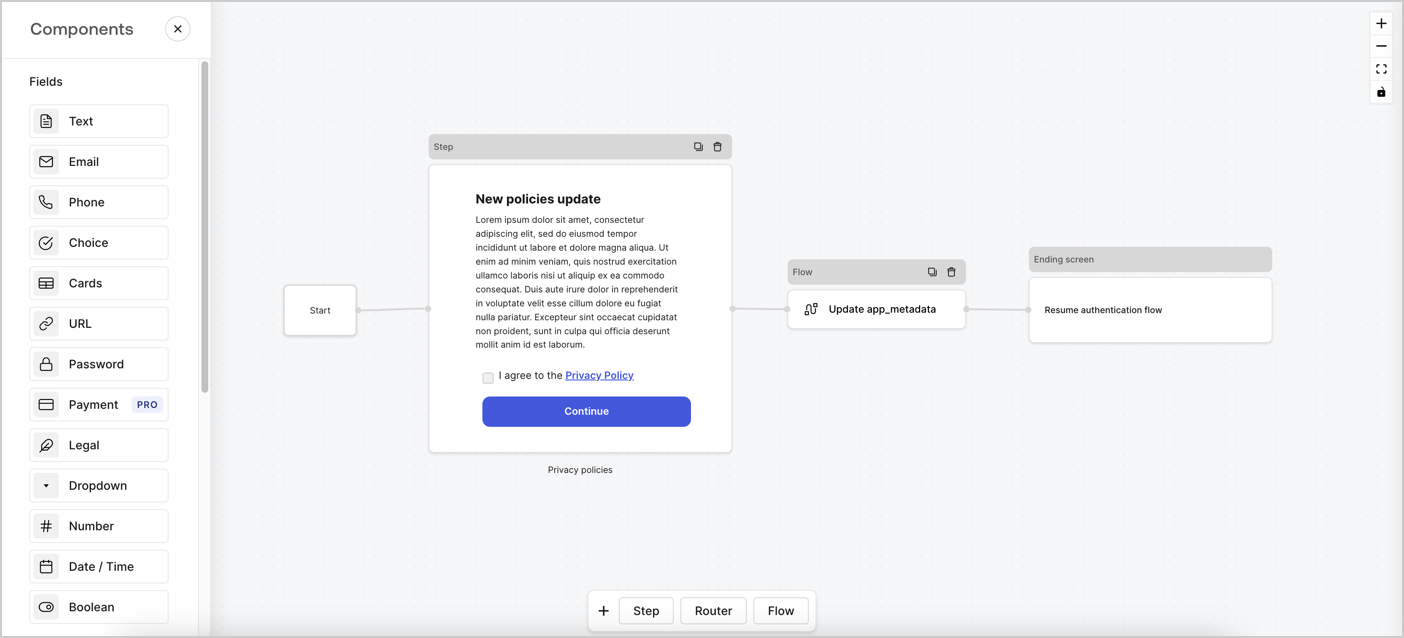
Forms for Actions allows you to create custom privacy policies flows and store the consent under the `app_metadata` object.
<Frame>
  <img src="https://mintcdn.com/docs-staging-actions-transaction-metadata/bLLeeS71lQ24gIaQ/docs/images/cdy7uua7fh8z/6i68dMvHDTijfRmSgN1x8Q/ad900e7d4c0fb34645921435472b8684/privavy-policy-form.png?fit=max&auto=format&n=bLLeeS71lQ24gIaQ&q=85&s=f542f7736c147f4a4f76a5bd4a572221" alt="Dashboard > Actions > Forms > Privacy policy use case" data-og-width="1404" width="1404" data-og-height="638" height="638" data-path="docs/images/cdy7uua7fh8z/6i68dMvHDTijfRmSgN1x8Q/ad900e7d4c0fb34645921435472b8684/privavy-policy-form.png" data-optimize="true" data-opv="3" srcset="https://mintcdn.com/docs-staging-actions-transaction-metadata/bLLeeS71lQ24gIaQ/docs/images/cdy7uua7fh8z/6i68dMvHDTijfRmSgN1x8Q/ad900e7d4c0fb34645921435472b8684/privavy-policy-form.png?w=280&fit=max&auto=format&n=bLLeeS71lQ24gIaQ&q=85&s=40bcaba84d8c31490897619f2001b486 280w, https://mintcdn.com/docs-staging-actions-transaction-metadata/bLLeeS71lQ24gIaQ/docs/images/cdy7uua7fh8z/6i68dMvHDTijfRmSgN1x8Q/ad900e7d4c0fb34645921435472b8684/privavy-policy-form.png?w=560&fit=max&auto=format&n=bLLeeS71lQ24gIaQ&q=85&s=7281e3dd738a1db9582e8ea80eb24682 560w, https://mintcdn.com/docs-staging-actions-transaction-metadata/bLLeeS71lQ24gIaQ/docs/images/cdy7uua7fh8z/6i68dMvHDTijfRmSgN1x8Q/ad900e7d4c0fb34645921435472b8684/privavy-policy-form.png?w=840&fit=max&auto=format&n=bLLeeS71lQ24gIaQ&q=85&s=21a2b78d8d2fd6de5638dc739b2a812a 840w, https://mintcdn.com/docs-staging-actions-transaction-metadata/bLLeeS71lQ24gIaQ/docs/images/cdy7uua7fh8z/6i68dMvHDTijfRmSgN1x8Q/ad900e7d4c0fb34645921435472b8684/privavy-policy-form.png?w=1100&fit=max&auto=format&n=bLLeeS71lQ24gIaQ&q=85&s=75b693808ca762d3bb093373dbe708f9 1100w, https://mintcdn.com/docs-staging-actions-transaction-metadata/bLLeeS71lQ24gIaQ/docs/images/cdy7uua7fh8z/6i68dMvHDTijfRmSgN1x8Q/ad900e7d4c0fb34645921435472b8684/privavy-policy-form.png?w=1650&fit=max&auto=format&n=bLLeeS71lQ24gIaQ&q=85&s=b372b355c124f5f8c0b92b3830593a9c 1650w, https://mintcdn.com/docs-staging-actions-transaction-metadata/bLLeeS71lQ24gIaQ/docs/images/cdy7uua7fh8z/6i68dMvHDTijfRmSgN1x8Q/ad900e7d4c0fb34645921435472b8684/privavy-policy-form.png?w=2500&fit=max&auto=format&n=bLLeeS71lQ24gIaQ&q=85&s=6580dbb8b1804b967a7e424569abde8c 2500w" />
</Frame>

The sections below outline how you can create an Update Policy form using nodes and flows, along with steps for adding your form to a [Post Login](/docs/customize/actions/explore-triggers/signup-and-login-triggers/login-trigger) Action.

## Create a form from scratch

Follow these steps to create a form to gather information:

1. Open the Form editor by selecting **Auth0 Dashboard > Actions > Forms.**
2. Select **Create Form** > **Start from scratch**.

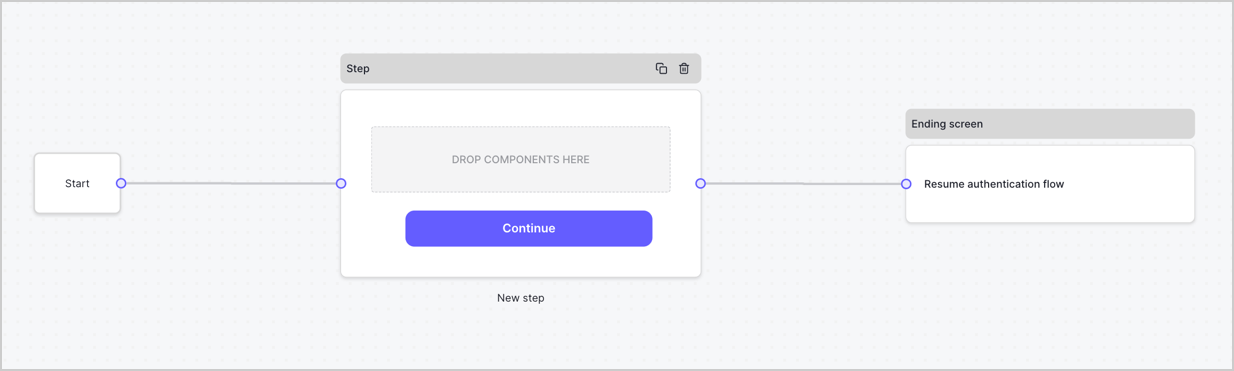
By default, a new form contains a Start node, a Step node, and an Ending screen node.
<Frame>
  <img src="https://mintcdn.com/docs-staging-actions-transaction-metadata/Em3Y8iVz3B-B4XQC/docs/images/cdy7uua7fh8z/2TZ9jSjgEcARFpULI6hz4R/a4319a1bd482f2ee5cc23100fdb2f42c/New-form-Forms-for-action-use-case.png?fit=max&auto=format&n=Em3Y8iVz3B-B4XQC&q=85&s=60b829b36317796f1c2492b2aff6a870" alt="Dashboard > Forms > Use Cases > Form" data-og-width="1234" width="1234" data-og-height="371" height="371" data-path="docs/images/cdy7uua7fh8z/2TZ9jSjgEcARFpULI6hz4R/a4319a1bd482f2ee5cc23100fdb2f42c/New-form-Forms-for-action-use-case.png" data-optimize="true" data-opv="3" srcset="https://mintcdn.com/docs-staging-actions-transaction-metadata/Em3Y8iVz3B-B4XQC/docs/images/cdy7uua7fh8z/2TZ9jSjgEcARFpULI6hz4R/a4319a1bd482f2ee5cc23100fdb2f42c/New-form-Forms-for-action-use-case.png?w=280&fit=max&auto=format&n=Em3Y8iVz3B-B4XQC&q=85&s=cd0b1e5154c2a5c1cb9eab71403cd561 280w, https://mintcdn.com/docs-staging-actions-transaction-metadata/Em3Y8iVz3B-B4XQC/docs/images/cdy7uua7fh8z/2TZ9jSjgEcARFpULI6hz4R/a4319a1bd482f2ee5cc23100fdb2f42c/New-form-Forms-for-action-use-case.png?w=560&fit=max&auto=format&n=Em3Y8iVz3B-B4XQC&q=85&s=1d9a98b5ef00a7998bfc75cae689d37e 560w, https://mintcdn.com/docs-staging-actions-transaction-metadata/Em3Y8iVz3B-B4XQC/docs/images/cdy7uua7fh8z/2TZ9jSjgEcARFpULI6hz4R/a4319a1bd482f2ee5cc23100fdb2f42c/New-form-Forms-for-action-use-case.png?w=840&fit=max&auto=format&n=Em3Y8iVz3B-B4XQC&q=85&s=500efb8ab9d36c773a09b20a9dfa7072 840w, https://mintcdn.com/docs-staging-actions-transaction-metadata/Em3Y8iVz3B-B4XQC/docs/images/cdy7uua7fh8z/2TZ9jSjgEcARFpULI6hz4R/a4319a1bd482f2ee5cc23100fdb2f42c/New-form-Forms-for-action-use-case.png?w=1100&fit=max&auto=format&n=Em3Y8iVz3B-B4XQC&q=85&s=2f55f3bc84eff78b580d6a7550d26f48 1100w, https://mintcdn.com/docs-staging-actions-transaction-metadata/Em3Y8iVz3B-B4XQC/docs/images/cdy7uua7fh8z/2TZ9jSjgEcARFpULI6hz4R/a4319a1bd482f2ee5cc23100fdb2f42c/New-form-Forms-for-action-use-case.png?w=1650&fit=max&auto=format&n=Em3Y8iVz3B-B4XQC&q=85&s=519acfc0e99d7877892631c319ac774e 1650w, https://mintcdn.com/docs-staging-actions-transaction-metadata/Em3Y8iVz3B-B4XQC/docs/images/cdy7uua7fh8z/2TZ9jSjgEcARFpULI6hz4R/a4319a1bd482f2ee5cc23100fdb2f42c/New-form-Forms-for-action-use-case.png?w=2500&fit=max&auto=format&n=Em3Y8iVz3B-B4XQC&q=85&s=2b9f00f10e61eb0b999da3c8812d3ff9 2500w" />
</Frame>

### Configure the Step node

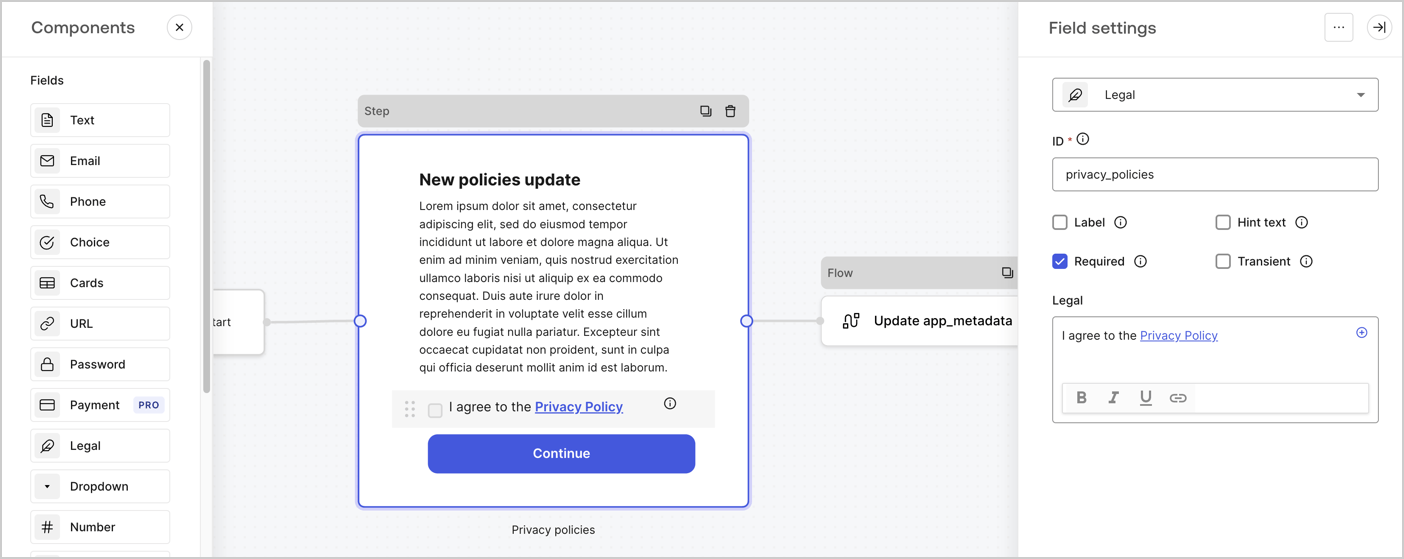
The Step node is the graphical interface visible to users. Add [Fields](/docs/customize/forms/nodes-and-components) to the Step node to collect the new agreement acceptance value by following these steps:

1. Drag a **Rich text** field from the **Components menu** into the **Step** node.

   * **Rich text**: Enter a description of your privacy policies updates.
   * Select **Save**.
2. Drag a **Legal** field into the **Step** node.

   * **ID**: Enter `privacy_policies`.
   * **Required**: Enable the checkbox.
   * **Legal**: Enter `I agree to the Privacy Policy`.
   * Select **Save**.
3. Select **Publish** to save.
<Frame>
  <img src="https://mintcdn.com/docs-staging-actions-transaction-metadata/_CoUKfl8xtvDquM8/docs/images/cdy7uua7fh8z/59zFFjQjAnjogkc2QGIqqJ/0ad66b1b636544122aa4e65968b76c2c/privacy-policy-step-node.png?fit=max&auto=format&n=_CoUKfl8xtvDquM8&q=85&s=b8ffb0272320a23fbd170166308ae246" alt="Dashboard > Actions > Forms > Use case privacy policy step node" data-og-width="1404" width="1404" data-og-height="559" height="559" data-path="docs/images/cdy7uua7fh8z/59zFFjQjAnjogkc2QGIqqJ/0ad66b1b636544122aa4e65968b76c2c/privacy-policy-step-node.png" data-optimize="true" data-opv="3" srcset="https://mintcdn.com/docs-staging-actions-transaction-metadata/_CoUKfl8xtvDquM8/docs/images/cdy7uua7fh8z/59zFFjQjAnjogkc2QGIqqJ/0ad66b1b636544122aa4e65968b76c2c/privacy-policy-step-node.png?w=280&fit=max&auto=format&n=_CoUKfl8xtvDquM8&q=85&s=57f1b4293916295c6357fc1a4bb14bad 280w, https://mintcdn.com/docs-staging-actions-transaction-metadata/_CoUKfl8xtvDquM8/docs/images/cdy7uua7fh8z/59zFFjQjAnjogkc2QGIqqJ/0ad66b1b636544122aa4e65968b76c2c/privacy-policy-step-node.png?w=560&fit=max&auto=format&n=_CoUKfl8xtvDquM8&q=85&s=ce477e604d7b3ec76486e1b6021f1859 560w, https://mintcdn.com/docs-staging-actions-transaction-metadata/_CoUKfl8xtvDquM8/docs/images/cdy7uua7fh8z/59zFFjQjAnjogkc2QGIqqJ/0ad66b1b636544122aa4e65968b76c2c/privacy-policy-step-node.png?w=840&fit=max&auto=format&n=_CoUKfl8xtvDquM8&q=85&s=f394281c963fb259636bc8beb717cfd3 840w, https://mintcdn.com/docs-staging-actions-transaction-metadata/_CoUKfl8xtvDquM8/docs/images/cdy7uua7fh8z/59zFFjQjAnjogkc2QGIqqJ/0ad66b1b636544122aa4e65968b76c2c/privacy-policy-step-node.png?w=1100&fit=max&auto=format&n=_CoUKfl8xtvDquM8&q=85&s=7845eadaff3dfe7c27d7aa223849e2a6 1100w, https://mintcdn.com/docs-staging-actions-transaction-metadata/_CoUKfl8xtvDquM8/docs/images/cdy7uua7fh8z/59zFFjQjAnjogkc2QGIqqJ/0ad66b1b636544122aa4e65968b76c2c/privacy-policy-step-node.png?w=1650&fit=max&auto=format&n=_CoUKfl8xtvDquM8&q=85&s=643c894052edb22bd109d75b3878d3f7 1650w, https://mintcdn.com/docs-staging-actions-transaction-metadata/_CoUKfl8xtvDquM8/docs/images/cdy7uua7fh8z/59zFFjQjAnjogkc2QGIqqJ/0ad66b1b636544122aa4e65968b76c2c/privacy-policy-step-node.png?w=2500&fit=max&auto=format&n=_CoUKfl8xtvDquM8&q=85&s=9f34aae4b54d2dea6e3cb1a85a85bf33 2500w" />
</Frame>

### Configure the Flow node

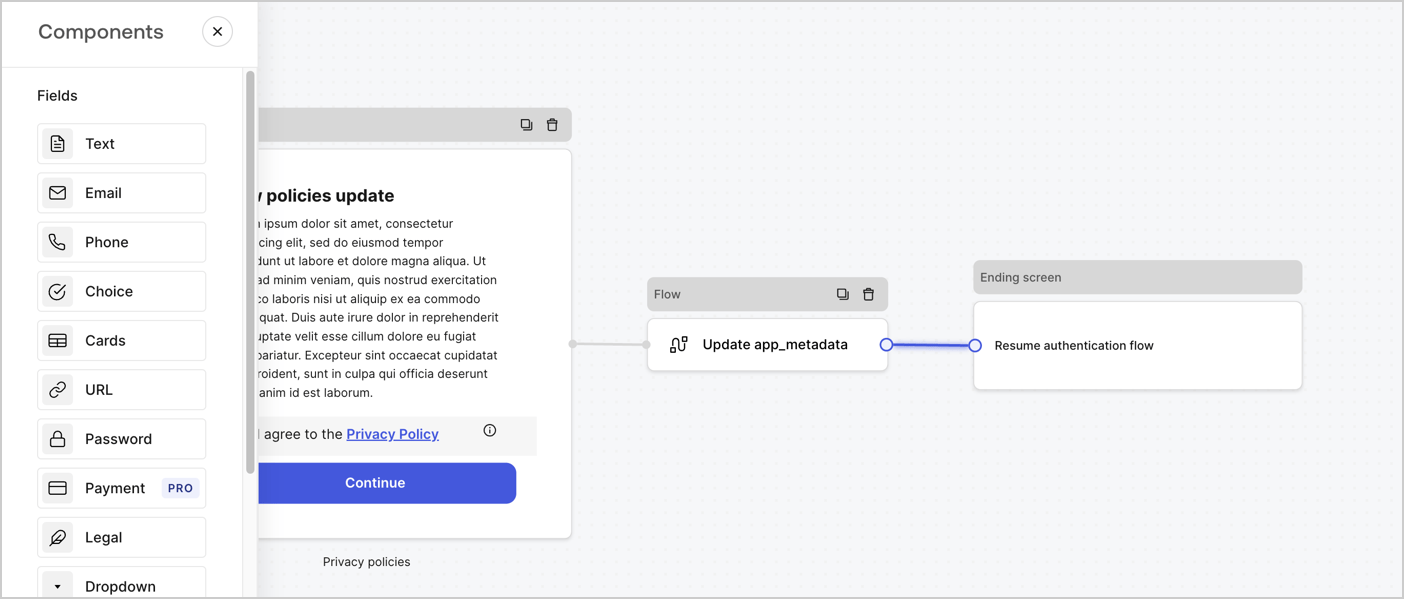
Add a **Flow** node after the **Step** node to update the `app_metadata` and resume the authentication flow by following these steps:

1. Select **Flow** from the bottom of the Form editor.
2. Remove the existing link between the **Step** and **Ending Screen** nodes.
3. Select the new **Flow** > **Click to add a flow** > **Create a new flow.**

   * Enter `Update app_metadata` in the **Name** field.
   * Select **Create**.
   * Select **Save**.
4. Link the **Flow** node to the **Step** and **Ending Screen** nodes as pictured below.
5. Select **Publish** to save.
<Frame>
  <img src="https://mintcdn.com/docs-staging-actions-transaction-metadata/bLLeeS71lQ24gIaQ/docs/images/cdy7uua7fh8z/6YIkzm7SrpM9LW76AXuRzh/353c518fe82bbaa440836da1d83596d6/link-policies.png?fit=max&auto=format&n=bLLeeS71lQ24gIaQ&q=85&s=5f91fb39ea82fe9ee9569f9735aee4d8" alt="Dashboard > Actions > Forms > Form" data-og-width="1404" width="1404" data-og-height="599" height="599" data-path="docs/images/cdy7uua7fh8z/6YIkzm7SrpM9LW76AXuRzh/353c518fe82bbaa440836da1d83596d6/link-policies.png" data-optimize="true" data-opv="3" srcset="https://mintcdn.com/docs-staging-actions-transaction-metadata/bLLeeS71lQ24gIaQ/docs/images/cdy7uua7fh8z/6YIkzm7SrpM9LW76AXuRzh/353c518fe82bbaa440836da1d83596d6/link-policies.png?w=280&fit=max&auto=format&n=bLLeeS71lQ24gIaQ&q=85&s=b3bf38fb93396fad7454181a9efc7cdf 280w, https://mintcdn.com/docs-staging-actions-transaction-metadata/bLLeeS71lQ24gIaQ/docs/images/cdy7uua7fh8z/6YIkzm7SrpM9LW76AXuRzh/353c518fe82bbaa440836da1d83596d6/link-policies.png?w=560&fit=max&auto=format&n=bLLeeS71lQ24gIaQ&q=85&s=fe1d7a7b8749f28328829f5fa776a86e 560w, https://mintcdn.com/docs-staging-actions-transaction-metadata/bLLeeS71lQ24gIaQ/docs/images/cdy7uua7fh8z/6YIkzm7SrpM9LW76AXuRzh/353c518fe82bbaa440836da1d83596d6/link-policies.png?w=840&fit=max&auto=format&n=bLLeeS71lQ24gIaQ&q=85&s=558e3ae71a2ca8ac43609a988f5b30c5 840w, https://mintcdn.com/docs-staging-actions-transaction-metadata/bLLeeS71lQ24gIaQ/docs/images/cdy7uua7fh8z/6YIkzm7SrpM9LW76AXuRzh/353c518fe82bbaa440836da1d83596d6/link-policies.png?w=1100&fit=max&auto=format&n=bLLeeS71lQ24gIaQ&q=85&s=f367deaf53523e8f951ed44be09eb888 1100w, https://mintcdn.com/docs-staging-actions-transaction-metadata/bLLeeS71lQ24gIaQ/docs/images/cdy7uua7fh8z/6YIkzm7SrpM9LW76AXuRzh/353c518fe82bbaa440836da1d83596d6/link-policies.png?w=1650&fit=max&auto=format&n=bLLeeS71lQ24gIaQ&q=85&s=761cd86fd9d7cc2b36385d826470004b 1650w, https://mintcdn.com/docs-staging-actions-transaction-metadata/bLLeeS71lQ24gIaQ/docs/images/cdy7uua7fh8z/6YIkzm7SrpM9LW76AXuRzh/353c518fe82bbaa440836da1d83596d6/link-policies.png?w=2500&fit=max&auto=format&n=bLLeeS71lQ24gIaQ&q=85&s=c675d35f06faae12bd9d7f05f2b919fd 2500w" />
</Frame>

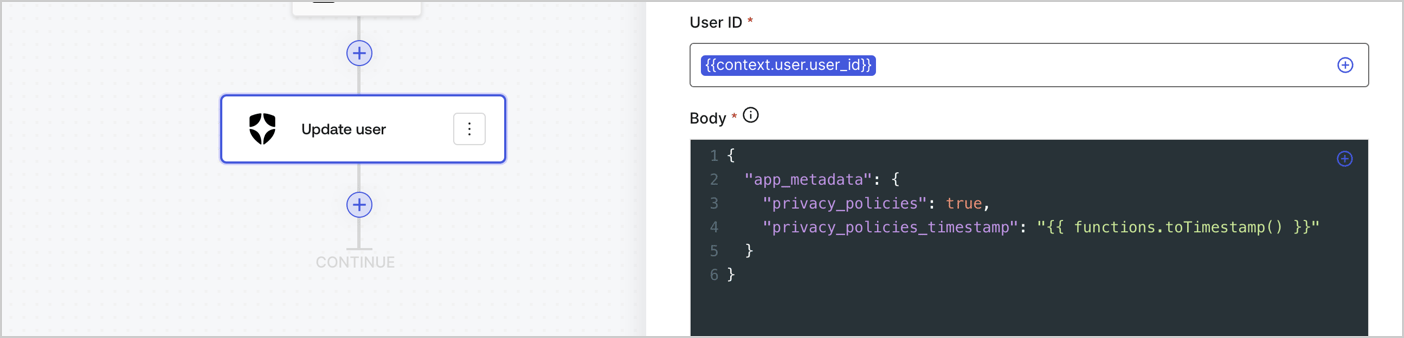
Add an Auth0 Update user action to the flow by following these steps:

1. Select the **Flow** **Update app\_metadata** > **Edit flow** to open the Flow editor in a new tab.
2. Below the StartAction, select the **+** icon to add an **Update user** action. Complete the fields below, then select **Save** to continue.

   * **Connection**: Select from the dropdown the Vault connection to your M2M application.

   * **User ID**: Enter `{{context.user.user_id}}`.

   * **Body**: Copy and paste the following code to update the app\_metadata with the privacy\_policies and privacy\_policies\_timestamp properties.

     ```text lines theme={null}
     {
       "app_metadata": {
         "privacy_policies": true,
         "privacy_policies_timestamp": "{{ functions.toTimestamp() }}"
       }
     }
     ```

   * Select **Save**.
3. Select **Publish** to save.
<Frame>
  <img src="https://mintcdn.com/docs-staging-actions-transaction-metadata/wlKstWAtLR2v0rBQ/docs/images/cdy7uua7fh8z/CvMNIwWrOUwaFW4X3G28p/1fb70ae57a20749d9ffaaba8dc0b7e26/update-user-privacy.png?fit=max&auto=format&n=wlKstWAtLR2v0rBQ&q=85&s=00bbd0c215a977e4ce1343d26a955911" alt="Dashboard > Actions > Forms > User case privacy policy code" data-og-width="1404" width="1404" data-og-height="338" height="338" data-path="docs/images/cdy7uua7fh8z/CvMNIwWrOUwaFW4X3G28p/1fb70ae57a20749d9ffaaba8dc0b7e26/update-user-privacy.png" data-optimize="true" data-opv="3" srcset="https://mintcdn.com/docs-staging-actions-transaction-metadata/wlKstWAtLR2v0rBQ/docs/images/cdy7uua7fh8z/CvMNIwWrOUwaFW4X3G28p/1fb70ae57a20749d9ffaaba8dc0b7e26/update-user-privacy.png?w=280&fit=max&auto=format&n=wlKstWAtLR2v0rBQ&q=85&s=eaf020b85d684e24aaabb7dfe9edf7c7 280w, https://mintcdn.com/docs-staging-actions-transaction-metadata/wlKstWAtLR2v0rBQ/docs/images/cdy7uua7fh8z/CvMNIwWrOUwaFW4X3G28p/1fb70ae57a20749d9ffaaba8dc0b7e26/update-user-privacy.png?w=560&fit=max&auto=format&n=wlKstWAtLR2v0rBQ&q=85&s=0e37fb582f39c5f0f64ffb207bbcaa30 560w, https://mintcdn.com/docs-staging-actions-transaction-metadata/wlKstWAtLR2v0rBQ/docs/images/cdy7uua7fh8z/CvMNIwWrOUwaFW4X3G28p/1fb70ae57a20749d9ffaaba8dc0b7e26/update-user-privacy.png?w=840&fit=max&auto=format&n=wlKstWAtLR2v0rBQ&q=85&s=e579346abe39e420cf73e8a54787d61d 840w, https://mintcdn.com/docs-staging-actions-transaction-metadata/wlKstWAtLR2v0rBQ/docs/images/cdy7uua7fh8z/CvMNIwWrOUwaFW4X3G28p/1fb70ae57a20749d9ffaaba8dc0b7e26/update-user-privacy.png?w=1100&fit=max&auto=format&n=wlKstWAtLR2v0rBQ&q=85&s=bb89890a75b1608cc2bfb9d5f7ed94ed 1100w, https://mintcdn.com/docs-staging-actions-transaction-metadata/wlKstWAtLR2v0rBQ/docs/images/cdy7uua7fh8z/CvMNIwWrOUwaFW4X3G28p/1fb70ae57a20749d9ffaaba8dc0b7e26/update-user-privacy.png?w=1650&fit=max&auto=format&n=wlKstWAtLR2v0rBQ&q=85&s=d8dd3a89ac9894f73919f8525d4eee05 1650w, https://mintcdn.com/docs-staging-actions-transaction-metadata/wlKstWAtLR2v0rBQ/docs/images/cdy7uua7fh8z/CvMNIwWrOUwaFW4X3G28p/1fb70ae57a20749d9ffaaba8dc0b7e26/update-user-privacy.png?w=2500&fit=max&auto=format&n=wlKstWAtLR2v0rBQ&q=85&s=dbaf80990cc2e6875afc0e1ed1ee25eb 2500w" />
</Frame>

<Callout icon="file-lines" color="#0EA5E9" iconType="regular">
  The flow **Update app\_metadata** adds a `privacy_policies true` value to the app`_metadata` object and also generates a timestamp with a [helper function.](/docs/customize/forms/variables)
</Callout>

## Retrieve the form render code

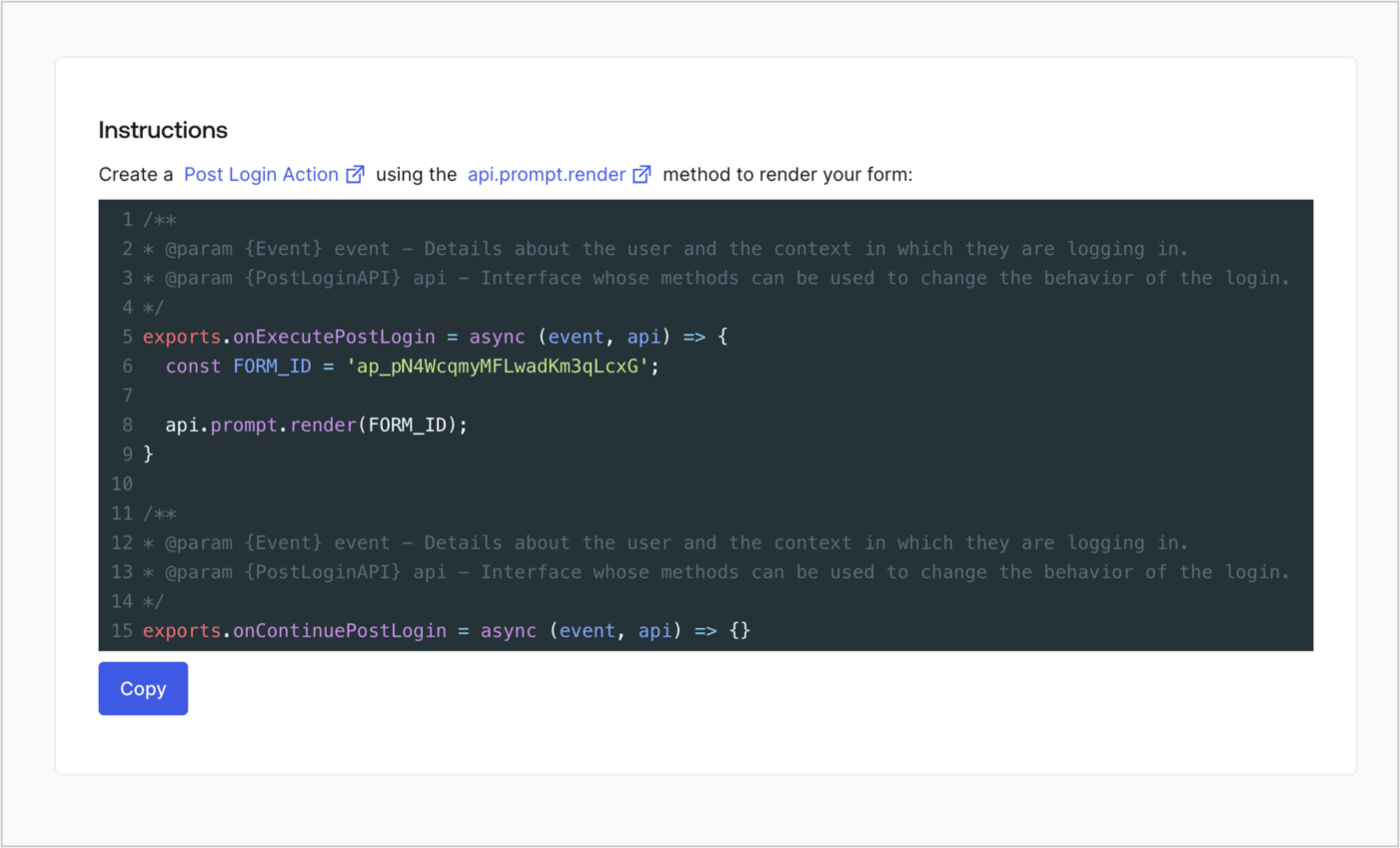
Retrieve your form render code to visually render the form with a custom Post Login Action by following these steps:

* From the Form editor, select **`<> Render`**.
* Select **Copy**.
<Frame>
  <img src="https://mintcdn.com/docs-staging-actions-transaction-metadata/ih4WAGvoCxHtcMiY/docs/images/cdy7uua7fh8z/2EIUzc539sq9lwoTKbjoJv/496a864c0fc44a782c9cadca119dbfb0/embed.png?fit=max&auto=format&n=ih4WAGvoCxHtcMiY&q=85&s=dd65e73ad712b095d58212ca0645f090" alt="Dashboard > Actions > Forms > Form > Embed" data-og-width="1400" width="1400" data-og-height="848" height="848" data-path="docs/images/cdy7uua7fh8z/2EIUzc539sq9lwoTKbjoJv/496a864c0fc44a782c9cadca119dbfb0/embed.png" data-optimize="true" data-opv="3" srcset="https://mintcdn.com/docs-staging-actions-transaction-metadata/ih4WAGvoCxHtcMiY/docs/images/cdy7uua7fh8z/2EIUzc539sq9lwoTKbjoJv/496a864c0fc44a782c9cadca119dbfb0/embed.png?w=280&fit=max&auto=format&n=ih4WAGvoCxHtcMiY&q=85&s=9d7d2a84bf380273fe83f54ed0d9ec40 280w, https://mintcdn.com/docs-staging-actions-transaction-metadata/ih4WAGvoCxHtcMiY/docs/images/cdy7uua7fh8z/2EIUzc539sq9lwoTKbjoJv/496a864c0fc44a782c9cadca119dbfb0/embed.png?w=560&fit=max&auto=format&n=ih4WAGvoCxHtcMiY&q=85&s=0344c02db79894438c2410d2999b31a3 560w, https://mintcdn.com/docs-staging-actions-transaction-metadata/ih4WAGvoCxHtcMiY/docs/images/cdy7uua7fh8z/2EIUzc539sq9lwoTKbjoJv/496a864c0fc44a782c9cadca119dbfb0/embed.png?w=840&fit=max&auto=format&n=ih4WAGvoCxHtcMiY&q=85&s=57d8163d68d17e933dbbd67daeac5b9f 840w, https://mintcdn.com/docs-staging-actions-transaction-metadata/ih4WAGvoCxHtcMiY/docs/images/cdy7uua7fh8z/2EIUzc539sq9lwoTKbjoJv/496a864c0fc44a782c9cadca119dbfb0/embed.png?w=1100&fit=max&auto=format&n=ih4WAGvoCxHtcMiY&q=85&s=9bb703a6689f5e3b9595a2a16288cc3d 1100w, https://mintcdn.com/docs-staging-actions-transaction-metadata/ih4WAGvoCxHtcMiY/docs/images/cdy7uua7fh8z/2EIUzc539sq9lwoTKbjoJv/496a864c0fc44a782c9cadca119dbfb0/embed.png?w=1650&fit=max&auto=format&n=ih4WAGvoCxHtcMiY&q=85&s=71c9e12648343a1af6ab0ccdacdf6db0 1650w, https://mintcdn.com/docs-staging-actions-transaction-metadata/ih4WAGvoCxHtcMiY/docs/images/cdy7uua7fh8z/2EIUzc539sq9lwoTKbjoJv/496a864c0fc44a782c9cadca119dbfb0/embed.png?w=2500&fit=max&auto=format&n=ih4WAGvoCxHtcMiY&q=85&s=f00f1f2d18e2e7d2b122b278dcff4563 2500w" />
</Frame>

## Create a Post Login Action

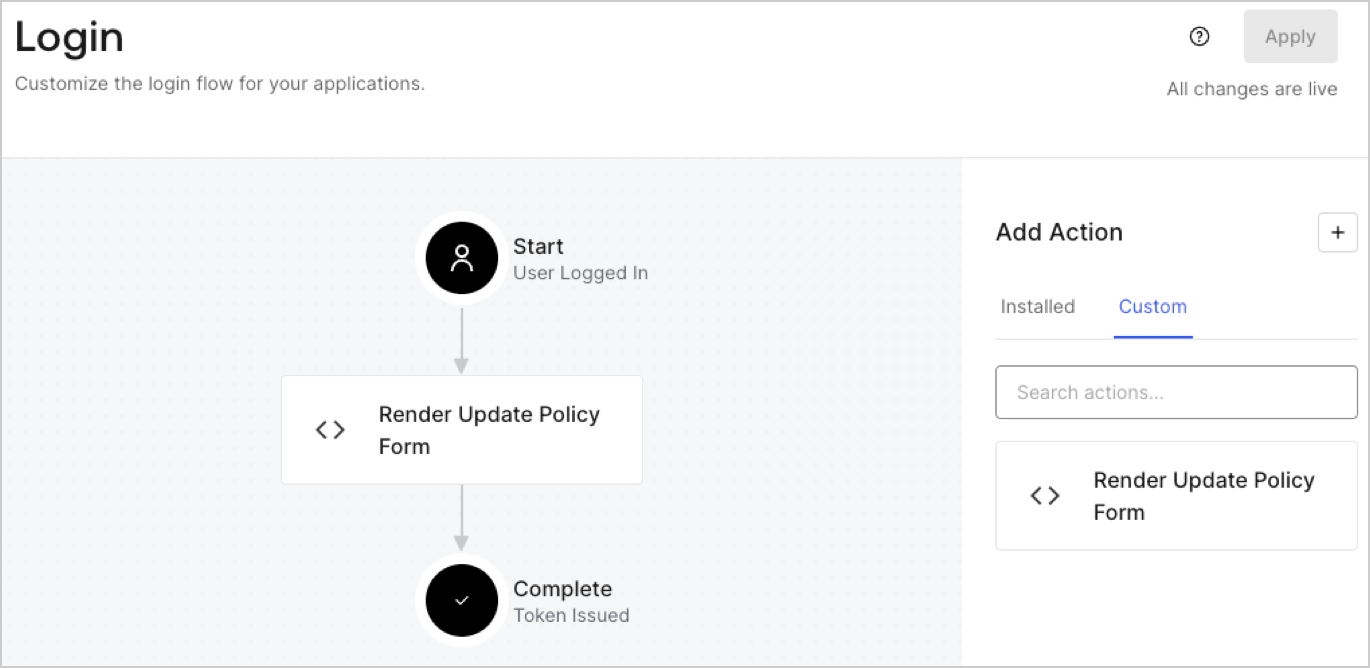
Create a post-login Action to render your form by following these steps:

1. Navigate to **Auth0 Dashboard > Actions > Flows > Login.**
2. Select the **+** icon and Select **Build from scratch**:

   * **Name**: Enter `Render Update Policy Form`.
   * **Trigger**: Select `Login / Post Login`.
   * **Runtime**: Select the recommended version.
3. Select **Create**.

To configure the post-login Action:

1. Delete the existing code from the Code editor.
2. Paste the form render code into the Code editor.
3. Edit the code to define the conditional logic that will render the form.

   ```javascript lines theme={null}
   /**
   * @param {Event} event - Details about the user and the context in which they are logging in.
   * @param {PostLoginAPI} api - Interface whose methods can be used to change the behavior of the login.
   */
   exports.onExecutePostLogin = async (event, api) => {
     const FORM_ID = 'REPLACE_WITH_YOUR_FORM_ID';

     if (event.user.app_metadata.privacy_policies !== true) {
       api.prompt.render(FORM_ID);
     }
   }

   exports.onContinuePostLogin = async (event, api) => { }
   ```

   <Callout icon="file-lines" color="#0EA5E9" iconType="regular">
     The example code above will render the form when a user is missing the app metadata `privacy_policies` property.
   </Callout>
4. Select **Deploy.**
5. Drag and Drop the **Render Update Policy Form** Action to the **Login** flow.
   <Frame>
     <img src="https://mintcdn.com/docs-staging-actions-transaction-metadata/uAyq-4NUn2_U7vDB/docs/images/cdy7uua7fh8z/5TOwDgevZsBqd7yZynUYWU/41ca909dc3007aed4f40ff794a05efa5/postlogin.png?fit=max&auto=format&n=uAyq-4NUn2_U7vDB&q=85&s=408ef66303ba0d9f7334e63457e63a8a" alt="Dashboard > Forms > Use Case > Render update policy form login action" data-og-width="1370" width="1370" data-og-height="668" height="668" data-path="docs/images/cdy7uua7fh8z/5TOwDgevZsBqd7yZynUYWU/41ca909dc3007aed4f40ff794a05efa5/postlogin.png" data-optimize="true" data-opv="3" srcset="https://mintcdn.com/docs-staging-actions-transaction-metadata/uAyq-4NUn2_U7vDB/docs/images/cdy7uua7fh8z/5TOwDgevZsBqd7yZynUYWU/41ca909dc3007aed4f40ff794a05efa5/postlogin.png?w=280&fit=max&auto=format&n=uAyq-4NUn2_U7vDB&q=85&s=4cf5cb57edcd515acb051e60fd5c5a28 280w, https://mintcdn.com/docs-staging-actions-transaction-metadata/uAyq-4NUn2_U7vDB/docs/images/cdy7uua7fh8z/5TOwDgevZsBqd7yZynUYWU/41ca909dc3007aed4f40ff794a05efa5/postlogin.png?w=560&fit=max&auto=format&n=uAyq-4NUn2_U7vDB&q=85&s=b798a22368137db9c3f233e1f8072feb 560w, https://mintcdn.com/docs-staging-actions-transaction-metadata/uAyq-4NUn2_U7vDB/docs/images/cdy7uua7fh8z/5TOwDgevZsBqd7yZynUYWU/41ca909dc3007aed4f40ff794a05efa5/postlogin.png?w=840&fit=max&auto=format&n=uAyq-4NUn2_U7vDB&q=85&s=ed2dae2eb4c2ddf0c9cfc4420750323b 840w, https://mintcdn.com/docs-staging-actions-transaction-metadata/uAyq-4NUn2_U7vDB/docs/images/cdy7uua7fh8z/5TOwDgevZsBqd7yZynUYWU/41ca909dc3007aed4f40ff794a05efa5/postlogin.png?w=1100&fit=max&auto=format&n=uAyq-4NUn2_U7vDB&q=85&s=2e8744aaed1aeb7dffb829f445b688d5 1100w, https://mintcdn.com/docs-staging-actions-transaction-metadata/uAyq-4NUn2_U7vDB/docs/images/cdy7uua7fh8z/5TOwDgevZsBqd7yZynUYWU/41ca909dc3007aed4f40ff794a05efa5/postlogin.png?w=1650&fit=max&auto=format&n=uAyq-4NUn2_U7vDB&q=85&s=35c9395e3641d475b6662a8f0d0e4b39 1650w, https://mintcdn.com/docs-staging-actions-transaction-metadata/uAyq-4NUn2_U7vDB/docs/images/cdy7uua7fh8z/5TOwDgevZsBqd7yZynUYWU/41ca909dc3007aed4f40ff794a05efa5/postlogin.png?w=2500&fit=max&auto=format&n=uAyq-4NUn2_U7vDB&q=85&s=6096e1199dabd7656ee83a9fb8b65a5b 2500w" />
   </Frame>
6. Select **Apply.**

### Test implementation

Test the implementation by following these steps:

1. Log in with an existing user whose app`_metadata` attribute `privacy_policies` does not have a value.
2. The post-login Action in the Login flow will render the form and prompt for acceptance.
3. Select **Auth0 Dashboard > User Management > Users,** locate the user and verify that the `app_metadata` attribute `privacy_policies` contains a `true` value and a timestamp.
