> ## Documentation Index
> Fetch the complete documentation index at: https://docs-staging-actions-transaction-metadata.mintlify.site/llms.txt
> Use this file to discover all available pages before exploring further.

> Learn how to configure a progressive profile form using Forms for Actions

# Use Cases: Configure a progressive profile form using Forms

<Card title="Before you start">
  1. Create a [Machine-to-Machine Application](/docs/get-started/auth0-overview/create-applications/machine-to-machine-apps) with the following scopes enabled:

  * `read:users`
  * `update:users`
  * `create:users`
  * `read:users_app_metadata`
  * `update:users_app_metadata`
  * `create:users_app_metadata`

  2. Add a [Vault connection](/docs/customize/forms/vault) using the M2M application credentials.
</Card>

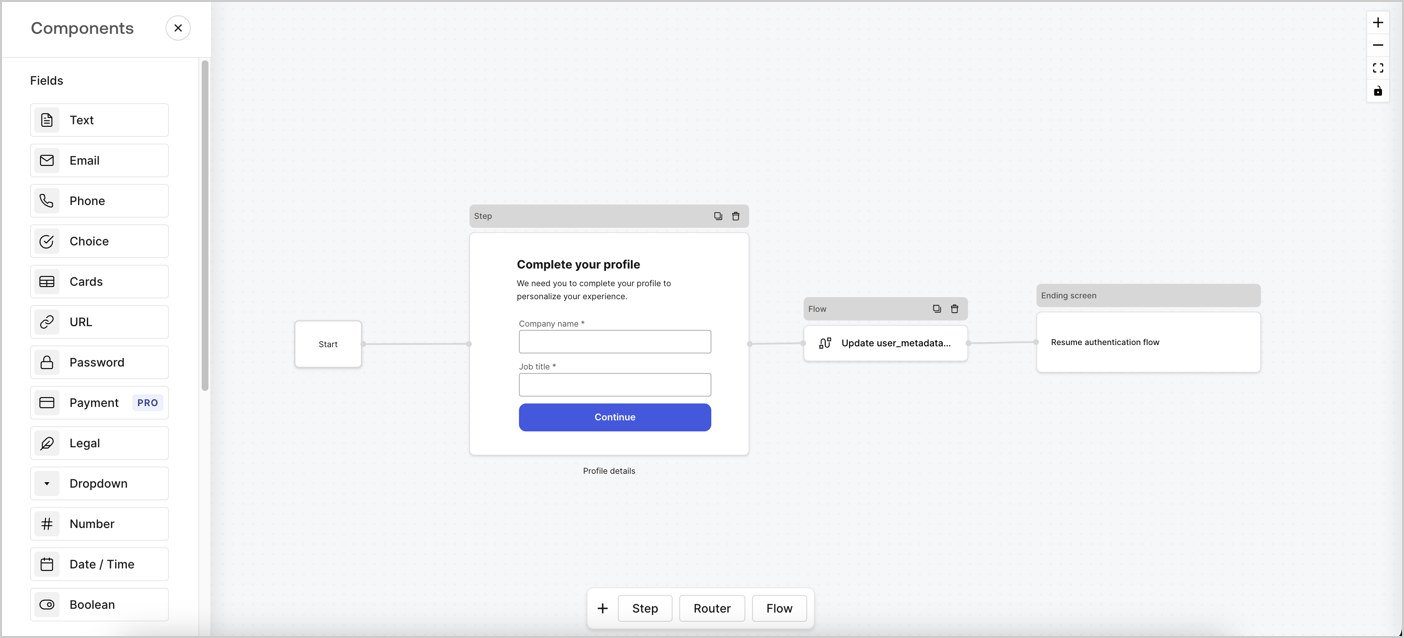
Forms for Actions allows you to create progressive profiling flows to decide when to prompt users to collect missing information, such as company name and job title, and store them as `user_metadata` attributes.
<Frame>
  <img src="https://mintcdn.com/docs-staging-actions-transaction-metadata/uE86i-xV8o59L2Ia/docs/images/cdy7uua7fh8z/xUx9YmnHvnAqL19JvNtNP/60dae88f893d4ebe8e3523421e960596/Progressive-profle-overview.png?fit=max&auto=format&n=uE86i-xV8o59L2Ia&q=85&s=302daa2a67ad9ae36d8a86873981f19a" alt="Dashboard > Actions > Forms > Form" data-og-width="1404" width="1404" data-og-height="638" height="638" data-path="docs/images/cdy7uua7fh8z/xUx9YmnHvnAqL19JvNtNP/60dae88f893d4ebe8e3523421e960596/Progressive-profle-overview.png" data-optimize="true" data-opv="3" srcset="https://mintcdn.com/docs-staging-actions-transaction-metadata/uE86i-xV8o59L2Ia/docs/images/cdy7uua7fh8z/xUx9YmnHvnAqL19JvNtNP/60dae88f893d4ebe8e3523421e960596/Progressive-profle-overview.png?w=280&fit=max&auto=format&n=uE86i-xV8o59L2Ia&q=85&s=26274fd7f06159e09a7102d04f6190dc 280w, https://mintcdn.com/docs-staging-actions-transaction-metadata/uE86i-xV8o59L2Ia/docs/images/cdy7uua7fh8z/xUx9YmnHvnAqL19JvNtNP/60dae88f893d4ebe8e3523421e960596/Progressive-profle-overview.png?w=560&fit=max&auto=format&n=uE86i-xV8o59L2Ia&q=85&s=833f8f425d3ad580a34054d58abbad6b 560w, https://mintcdn.com/docs-staging-actions-transaction-metadata/uE86i-xV8o59L2Ia/docs/images/cdy7uua7fh8z/xUx9YmnHvnAqL19JvNtNP/60dae88f893d4ebe8e3523421e960596/Progressive-profle-overview.png?w=840&fit=max&auto=format&n=uE86i-xV8o59L2Ia&q=85&s=e528a536529dc7223dc14a89189b0a0d 840w, https://mintcdn.com/docs-staging-actions-transaction-metadata/uE86i-xV8o59L2Ia/docs/images/cdy7uua7fh8z/xUx9YmnHvnAqL19JvNtNP/60dae88f893d4ebe8e3523421e960596/Progressive-profle-overview.png?w=1100&fit=max&auto=format&n=uE86i-xV8o59L2Ia&q=85&s=af9e235076a0d1e2e32d21123fadb066 1100w, https://mintcdn.com/docs-staging-actions-transaction-metadata/uE86i-xV8o59L2Ia/docs/images/cdy7uua7fh8z/xUx9YmnHvnAqL19JvNtNP/60dae88f893d4ebe8e3523421e960596/Progressive-profle-overview.png?w=1650&fit=max&auto=format&n=uE86i-xV8o59L2Ia&q=85&s=ad75d209452a24fd93bd1681e10c4292 1650w, https://mintcdn.com/docs-staging-actions-transaction-metadata/uE86i-xV8o59L2Ia/docs/images/cdy7uua7fh8z/xUx9YmnHvnAqL19JvNtNP/60dae88f893d4ebe8e3523421e960596/Progressive-profle-overview.png?w=2500&fit=max&auto=format&n=uE86i-xV8o59L2Ia&q=85&s=9d49fab1583ef40cdd7631dac78143ea 2500w" />
</Frame>

The sections below outline how you can create a progressive profile form using nodes and flows, along with steps for adding your form to a [Post Login Action](/docs/customize/actions/explore-triggers/signup-and-login-triggers/login-trigger).

## Create a form from scratch

Follow these steps to create a form to gather information:

1. Open the Form editor by selecting **Auth0 Dashboard > Actions > Forms.**
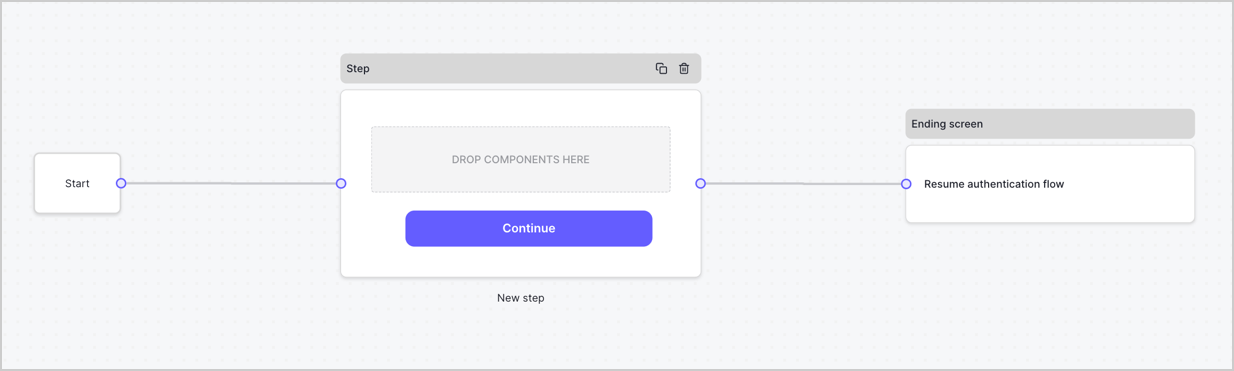
2. Select **Create Form** > **Start from scratch**.

By default, a new form contains a Start node, a Step node, and an Ending screen node.
<Frame>
  <img src="https://mintcdn.com/docs-staging-actions-transaction-metadata/Em3Y8iVz3B-B4XQC/docs/images/cdy7uua7fh8z/2TZ9jSjgEcARFpULI6hz4R/a4319a1bd482f2ee5cc23100fdb2f42c/New-form-Forms-for-action-use-case.png?fit=max&auto=format&n=Em3Y8iVz3B-B4XQC&q=85&s=60b829b36317796f1c2492b2aff6a870" alt="Dashboard > Forms > Use Cases > Form" data-og-width="1234" width="1234" data-og-height="371" height="371" data-path="docs/images/cdy7uua7fh8z/2TZ9jSjgEcARFpULI6hz4R/a4319a1bd482f2ee5cc23100fdb2f42c/New-form-Forms-for-action-use-case.png" data-optimize="true" data-opv="3" srcset="https://mintcdn.com/docs-staging-actions-transaction-metadata/Em3Y8iVz3B-B4XQC/docs/images/cdy7uua7fh8z/2TZ9jSjgEcARFpULI6hz4R/a4319a1bd482f2ee5cc23100fdb2f42c/New-form-Forms-for-action-use-case.png?w=280&fit=max&auto=format&n=Em3Y8iVz3B-B4XQC&q=85&s=cd0b1e5154c2a5c1cb9eab71403cd561 280w, https://mintcdn.com/docs-staging-actions-transaction-metadata/Em3Y8iVz3B-B4XQC/docs/images/cdy7uua7fh8z/2TZ9jSjgEcARFpULI6hz4R/a4319a1bd482f2ee5cc23100fdb2f42c/New-form-Forms-for-action-use-case.png?w=560&fit=max&auto=format&n=Em3Y8iVz3B-B4XQC&q=85&s=1d9a98b5ef00a7998bfc75cae689d37e 560w, https://mintcdn.com/docs-staging-actions-transaction-metadata/Em3Y8iVz3B-B4XQC/docs/images/cdy7uua7fh8z/2TZ9jSjgEcARFpULI6hz4R/a4319a1bd482f2ee5cc23100fdb2f42c/New-form-Forms-for-action-use-case.png?w=840&fit=max&auto=format&n=Em3Y8iVz3B-B4XQC&q=85&s=500efb8ab9d36c773a09b20a9dfa7072 840w, https://mintcdn.com/docs-staging-actions-transaction-metadata/Em3Y8iVz3B-B4XQC/docs/images/cdy7uua7fh8z/2TZ9jSjgEcARFpULI6hz4R/a4319a1bd482f2ee5cc23100fdb2f42c/New-form-Forms-for-action-use-case.png?w=1100&fit=max&auto=format&n=Em3Y8iVz3B-B4XQC&q=85&s=2f55f3bc84eff78b580d6a7550d26f48 1100w, https://mintcdn.com/docs-staging-actions-transaction-metadata/Em3Y8iVz3B-B4XQC/docs/images/cdy7uua7fh8z/2TZ9jSjgEcARFpULI6hz4R/a4319a1bd482f2ee5cc23100fdb2f42c/New-form-Forms-for-action-use-case.png?w=1650&fit=max&auto=format&n=Em3Y8iVz3B-B4XQC&q=85&s=519acfc0e99d7877892631c319ac774e 1650w, https://mintcdn.com/docs-staging-actions-transaction-metadata/Em3Y8iVz3B-B4XQC/docs/images/cdy7uua7fh8z/2TZ9jSjgEcARFpULI6hz4R/a4319a1bd482f2ee5cc23100fdb2f42c/New-form-Forms-for-action-use-case.png?w=2500&fit=max&auto=format&n=Em3Y8iVz3B-B4XQC&q=85&s=2b9f00f10e61eb0b999da3c8812d3ff9 2500w" />
</Frame>

### Configure the Step node

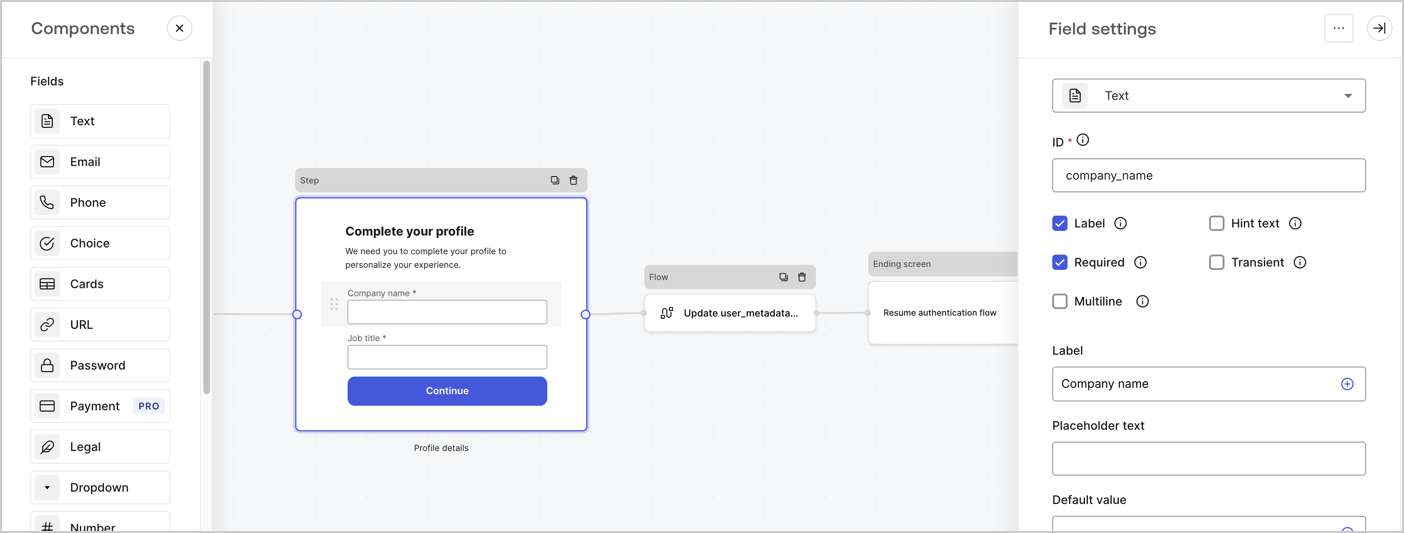
The Step node is the graphical interface visible to users. Add [Fields](/docs/customize/forms/nodes-and-components) to the Step node to collect the user's company name and job title values by following these steps:

1. Drag a **Rich text** field from the **Components menu** into the **Step** node.

   * **Rich text**: Enter a custom message.

     * **Example**: `Complete your profile! We need you to complete your profile to personalize your experience.`
   * Select **Save**.
2. Drag a **Text** field into the **Step** node.

   * **ID**: Enter `company_name`.
   * **Label**: Enable the checkbox.
   * **Label**: Enter `Company name`.
   * **Required**: Enable the checkbox.
   * Select **Save**.
3. Drag a **Text** field into the **Step** node.

   1. **ID**: Enter `job_title`.
   2. **Label**: Enter `Job title`.
   3. **Label**: Enable the checkbox.
   4. **Required**: Enable the checkbox.
   5. Select **Save**.
4. Select **Publish** to save.
<Frame>
  <img src="https://mintcdn.com/docs-staging-actions-transaction-metadata/bLLeeS71lQ24gIaQ/docs/images/cdy7uua7fh8z/6H1lRzwKyYioQyQJ9MtIoM/aa248e92fc028a68a5b92ff361a11644/progressive-profile-step.png?fit=max&auto=format&n=bLLeeS71lQ24gIaQ&q=85&s=b347eee5bbc565754c7d8f077c9f6398" alt="Dashboard > Actions > Forms > Form > Step node" data-og-width="1404" width="1404" data-og-height="533" height="533" data-path="docs/images/cdy7uua7fh8z/6H1lRzwKyYioQyQJ9MtIoM/aa248e92fc028a68a5b92ff361a11644/progressive-profile-step.png" data-optimize="true" data-opv="3" srcset="https://mintcdn.com/docs-staging-actions-transaction-metadata/bLLeeS71lQ24gIaQ/docs/images/cdy7uua7fh8z/6H1lRzwKyYioQyQJ9MtIoM/aa248e92fc028a68a5b92ff361a11644/progressive-profile-step.png?w=280&fit=max&auto=format&n=bLLeeS71lQ24gIaQ&q=85&s=1686abf1016f7ec5fed5394c47b65a53 280w, https://mintcdn.com/docs-staging-actions-transaction-metadata/bLLeeS71lQ24gIaQ/docs/images/cdy7uua7fh8z/6H1lRzwKyYioQyQJ9MtIoM/aa248e92fc028a68a5b92ff361a11644/progressive-profile-step.png?w=560&fit=max&auto=format&n=bLLeeS71lQ24gIaQ&q=85&s=8b34edd1bf00b5de46af0ef43bb2e571 560w, https://mintcdn.com/docs-staging-actions-transaction-metadata/bLLeeS71lQ24gIaQ/docs/images/cdy7uua7fh8z/6H1lRzwKyYioQyQJ9MtIoM/aa248e92fc028a68a5b92ff361a11644/progressive-profile-step.png?w=840&fit=max&auto=format&n=bLLeeS71lQ24gIaQ&q=85&s=e4c47a205c30915bf4e923f849de9b58 840w, https://mintcdn.com/docs-staging-actions-transaction-metadata/bLLeeS71lQ24gIaQ/docs/images/cdy7uua7fh8z/6H1lRzwKyYioQyQJ9MtIoM/aa248e92fc028a68a5b92ff361a11644/progressive-profile-step.png?w=1100&fit=max&auto=format&n=bLLeeS71lQ24gIaQ&q=85&s=27e01d60aa27996159bfe247e984ba18 1100w, https://mintcdn.com/docs-staging-actions-transaction-metadata/bLLeeS71lQ24gIaQ/docs/images/cdy7uua7fh8z/6H1lRzwKyYioQyQJ9MtIoM/aa248e92fc028a68a5b92ff361a11644/progressive-profile-step.png?w=1650&fit=max&auto=format&n=bLLeeS71lQ24gIaQ&q=85&s=7746572edfb8db588425f0ccff76dfc0 1650w, https://mintcdn.com/docs-staging-actions-transaction-metadata/bLLeeS71lQ24gIaQ/docs/images/cdy7uua7fh8z/6H1lRzwKyYioQyQJ9MtIoM/aa248e92fc028a68a5b92ff361a11644/progressive-profile-step.png?w=2500&fit=max&auto=format&n=bLLeeS71lQ24gIaQ&q=85&s=340494aeb7561aa5ac1f9d3fb1200261 2500w" />
</Frame>

### Configure the flow node

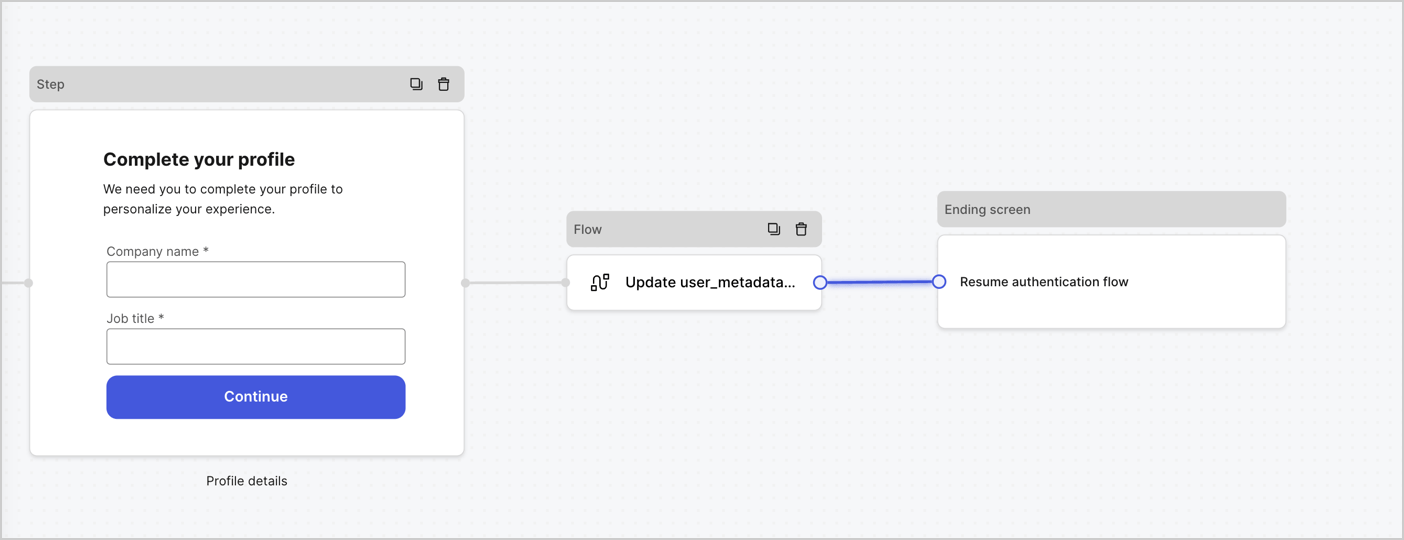
Add a **Flow** node after the **Step** node to update the `user_metadata` and resume the authentication flow by following these steps:

1. Select **Flow** from the bottom of the Form editor.
2. Remove the existing link between the **Step** and **Ending Screen** nodes.
3. Select the new **Flow** > **Click to add a flow** > **Create a new flow.**

   * Enter `Update user_metadata` in the **Name** field.
   * Select **Create**.
   * Select **Save**.
4. Link the **Flow** node to the **Step** and **Ending Screen** nodes as pictured below.
5. Select **Publish** to save.
<Frame>
  <img src="https://mintcdn.com/docs-staging-actions-transaction-metadata/_CoUKfl8xtvDquM8/docs/images/cdy7uua7fh8z/5C91DaWn4LGtJT9BF87ssu/095171d0c452a287c44bfde12fd6d13f/link-nodes.png?fit=max&auto=format&n=_CoUKfl8xtvDquM8&q=85&s=261541f681803d84852ec5ab5a3296f8" alt="Dashboard > Actions > Forms > Form" data-og-width="1404" width="1404" data-og-height="540" height="540" data-path="docs/images/cdy7uua7fh8z/5C91DaWn4LGtJT9BF87ssu/095171d0c452a287c44bfde12fd6d13f/link-nodes.png" data-optimize="true" data-opv="3" srcset="https://mintcdn.com/docs-staging-actions-transaction-metadata/_CoUKfl8xtvDquM8/docs/images/cdy7uua7fh8z/5C91DaWn4LGtJT9BF87ssu/095171d0c452a287c44bfde12fd6d13f/link-nodes.png?w=280&fit=max&auto=format&n=_CoUKfl8xtvDquM8&q=85&s=034368ba22b0021738a5869c4f5989a7 280w, https://mintcdn.com/docs-staging-actions-transaction-metadata/_CoUKfl8xtvDquM8/docs/images/cdy7uua7fh8z/5C91DaWn4LGtJT9BF87ssu/095171d0c452a287c44bfde12fd6d13f/link-nodes.png?w=560&fit=max&auto=format&n=_CoUKfl8xtvDquM8&q=85&s=df5c4ec39a3e3c6c5aaba81c40d4f989 560w, https://mintcdn.com/docs-staging-actions-transaction-metadata/_CoUKfl8xtvDquM8/docs/images/cdy7uua7fh8z/5C91DaWn4LGtJT9BF87ssu/095171d0c452a287c44bfde12fd6d13f/link-nodes.png?w=840&fit=max&auto=format&n=_CoUKfl8xtvDquM8&q=85&s=db24989bd07d3063131dfb6a85efab76 840w, https://mintcdn.com/docs-staging-actions-transaction-metadata/_CoUKfl8xtvDquM8/docs/images/cdy7uua7fh8z/5C91DaWn4LGtJT9BF87ssu/095171d0c452a287c44bfde12fd6d13f/link-nodes.png?w=1100&fit=max&auto=format&n=_CoUKfl8xtvDquM8&q=85&s=ad38db831e7d1e707cf46317bf9bb16c 1100w, https://mintcdn.com/docs-staging-actions-transaction-metadata/_CoUKfl8xtvDquM8/docs/images/cdy7uua7fh8z/5C91DaWn4LGtJT9BF87ssu/095171d0c452a287c44bfde12fd6d13f/link-nodes.png?w=1650&fit=max&auto=format&n=_CoUKfl8xtvDquM8&q=85&s=1bf8ff8de0b24f0cc3a23a62beddb027 1650w, https://mintcdn.com/docs-staging-actions-transaction-metadata/_CoUKfl8xtvDquM8/docs/images/cdy7uua7fh8z/5C91DaWn4LGtJT9BF87ssu/095171d0c452a287c44bfde12fd6d13f/link-nodes.png?w=2500&fit=max&auto=format&n=_CoUKfl8xtvDquM8&q=85&s=178595c8bc9a76b76a30855aebd4545c 2500w" />
</Frame>

Add an Auth0 Update user action to the flow by following these steps:

1. Select the **Update user\_metadata** flow, then select the **Edit Flow** to open the Flow editor in a new tab.
2. Below the **Start** action, select the **+** icon to add an **Update user** action. Complete the fields below, then select **Save** to continue.

   * **Connection**: Select from the dropdown the Vault connection to your M2M application.

   * **User ID**: Enter `{{context.user.user_id}}`.

   * **Body**: Copy and paste the following code to update the user\_metadata with `job_title` and `company_name` properties.

     ```json lines theme={null}
     {
        "user_metadata": {
           "job_title": "{{fields.job_title}}",
           "company_name": "{{fields.company_name}}"
        }
     }
     ```

   * Select **Save**.
3. Select **Publish** to save.

<Frame>
  <img src="https://mintcdn.com/docs-staging-actions-transaction-metadata/uAyq-4NUn2_U7vDB/docs/images/cdy7uua7fh8z/65Jx4W5oIZJyyvA8z4HqIx/0661b1a8ca6361c54fc4fef07ba59f0b/update-user.png?fit=max&auto=format&n=uAyq-4NUn2_U7vDB&q=85&s=4d623119826e88c5e7f0c06db44845bf" alt="Dashboard > Actions > Forms > Flows" data-og-width="1404" width="1404" data-og-height="244" height="244" data-path="docs/images/cdy7uua7fh8z/65Jx4W5oIZJyyvA8z4HqIx/0661b1a8ca6361c54fc4fef07ba59f0b/update-user.png" data-optimize="true" data-opv="3" srcset="https://mintcdn.com/docs-staging-actions-transaction-metadata/uAyq-4NUn2_U7vDB/docs/images/cdy7uua7fh8z/65Jx4W5oIZJyyvA8z4HqIx/0661b1a8ca6361c54fc4fef07ba59f0b/update-user.png?w=280&fit=max&auto=format&n=uAyq-4NUn2_U7vDB&q=85&s=07bfcded86c9c3e855c3cdace06a9f04 280w, https://mintcdn.com/docs-staging-actions-transaction-metadata/uAyq-4NUn2_U7vDB/docs/images/cdy7uua7fh8z/65Jx4W5oIZJyyvA8z4HqIx/0661b1a8ca6361c54fc4fef07ba59f0b/update-user.png?w=560&fit=max&auto=format&n=uAyq-4NUn2_U7vDB&q=85&s=d031b3fe08590aa1aab6e1cb75ff3738 560w, https://mintcdn.com/docs-staging-actions-transaction-metadata/uAyq-4NUn2_U7vDB/docs/images/cdy7uua7fh8z/65Jx4W5oIZJyyvA8z4HqIx/0661b1a8ca6361c54fc4fef07ba59f0b/update-user.png?w=840&fit=max&auto=format&n=uAyq-4NUn2_U7vDB&q=85&s=4b2eebcff91d77af0a2b7e4881f7d938 840w, https://mintcdn.com/docs-staging-actions-transaction-metadata/uAyq-4NUn2_U7vDB/docs/images/cdy7uua7fh8z/65Jx4W5oIZJyyvA8z4HqIx/0661b1a8ca6361c54fc4fef07ba59f0b/update-user.png?w=1100&fit=max&auto=format&n=uAyq-4NUn2_U7vDB&q=85&s=f344c04fa6117d9fc64ced718a2151d2 1100w, https://mintcdn.com/docs-staging-actions-transaction-metadata/uAyq-4NUn2_U7vDB/docs/images/cdy7uua7fh8z/65Jx4W5oIZJyyvA8z4HqIx/0661b1a8ca6361c54fc4fef07ba59f0b/update-user.png?w=1650&fit=max&auto=format&n=uAyq-4NUn2_U7vDB&q=85&s=ae0e7d1fe50998670becf0bcfecdbea1 1650w, https://mintcdn.com/docs-staging-actions-transaction-metadata/uAyq-4NUn2_U7vDB/docs/images/cdy7uua7fh8z/65Jx4W5oIZJyyvA8z4HqIx/0661b1a8ca6361c54fc4fef07ba59f0b/update-user.png?w=2500&fit=max&auto=format&n=uAyq-4NUn2_U7vDB&q=85&s=6c98cc313c8bb91461db816b2623a9fb 2500w" />
</Frame>

### Retrieve the form render code

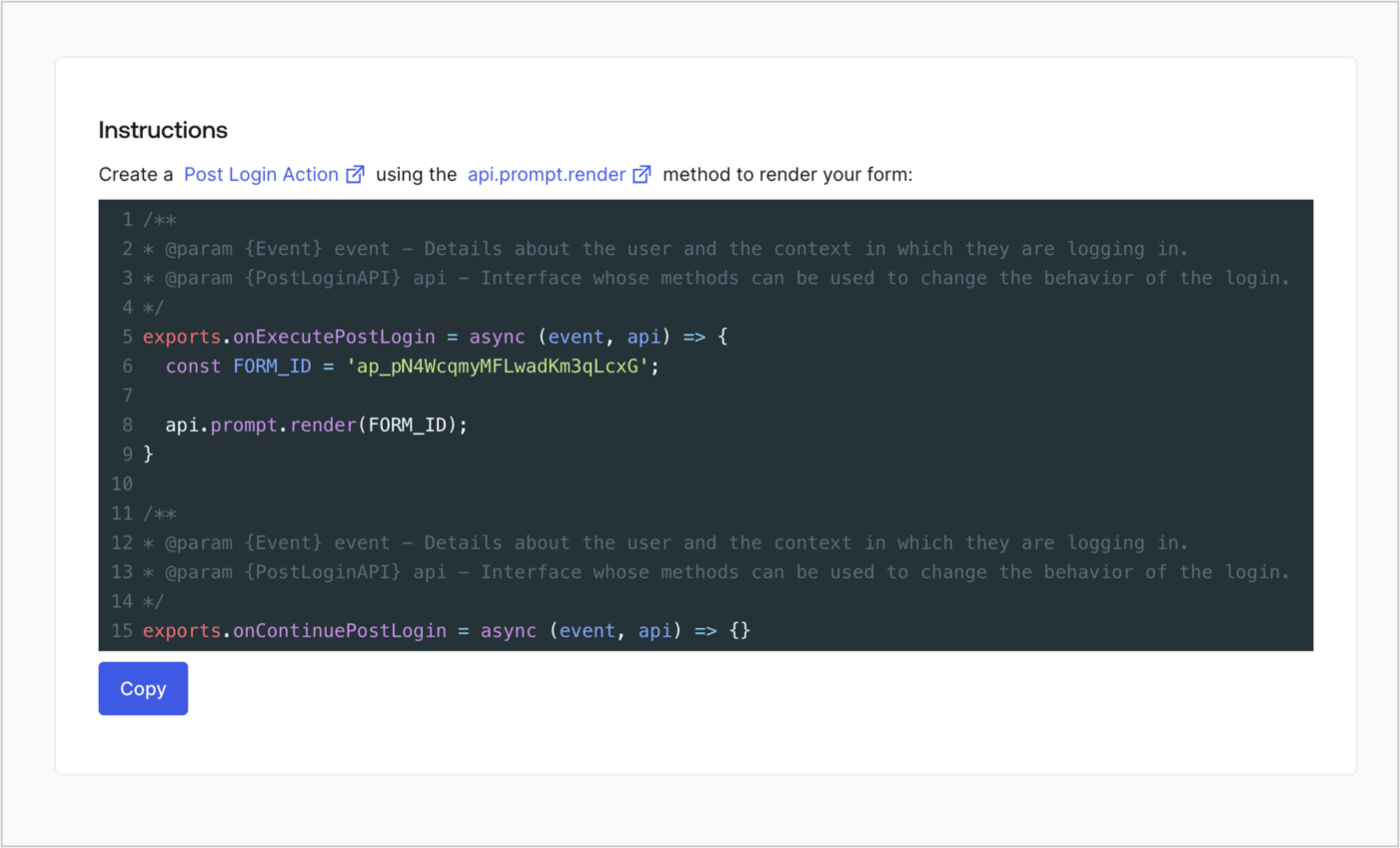
Retrieve the form render code to visually render the form with a custom Post Login Action by following these steps:

* From the Form editor, select **`<> Render`**.
* Select **Copy**.
<Frame>
  <img src="https://mintcdn.com/docs-staging-actions-transaction-metadata/ih4WAGvoCxHtcMiY/docs/images/cdy7uua7fh8z/2EIUzc539sq9lwoTKbjoJv/496a864c0fc44a782c9cadca119dbfb0/embed.png?fit=max&auto=format&n=ih4WAGvoCxHtcMiY&q=85&s=dd65e73ad712b095d58212ca0645f090" alt="Dashboard > Actions > Forms > Form > Embed" data-og-width="1400" width="1400" data-og-height="848" height="848" data-path="docs/images/cdy7uua7fh8z/2EIUzc539sq9lwoTKbjoJv/496a864c0fc44a782c9cadca119dbfb0/embed.png" data-optimize="true" data-opv="3" srcset="https://mintcdn.com/docs-staging-actions-transaction-metadata/ih4WAGvoCxHtcMiY/docs/images/cdy7uua7fh8z/2EIUzc539sq9lwoTKbjoJv/496a864c0fc44a782c9cadca119dbfb0/embed.png?w=280&fit=max&auto=format&n=ih4WAGvoCxHtcMiY&q=85&s=9d7d2a84bf380273fe83f54ed0d9ec40 280w, https://mintcdn.com/docs-staging-actions-transaction-metadata/ih4WAGvoCxHtcMiY/docs/images/cdy7uua7fh8z/2EIUzc539sq9lwoTKbjoJv/496a864c0fc44a782c9cadca119dbfb0/embed.png?w=560&fit=max&auto=format&n=ih4WAGvoCxHtcMiY&q=85&s=0344c02db79894438c2410d2999b31a3 560w, https://mintcdn.com/docs-staging-actions-transaction-metadata/ih4WAGvoCxHtcMiY/docs/images/cdy7uua7fh8z/2EIUzc539sq9lwoTKbjoJv/496a864c0fc44a782c9cadca119dbfb0/embed.png?w=840&fit=max&auto=format&n=ih4WAGvoCxHtcMiY&q=85&s=57d8163d68d17e933dbbd67daeac5b9f 840w, https://mintcdn.com/docs-staging-actions-transaction-metadata/ih4WAGvoCxHtcMiY/docs/images/cdy7uua7fh8z/2EIUzc539sq9lwoTKbjoJv/496a864c0fc44a782c9cadca119dbfb0/embed.png?w=1100&fit=max&auto=format&n=ih4WAGvoCxHtcMiY&q=85&s=9bb703a6689f5e3b9595a2a16288cc3d 1100w, https://mintcdn.com/docs-staging-actions-transaction-metadata/ih4WAGvoCxHtcMiY/docs/images/cdy7uua7fh8z/2EIUzc539sq9lwoTKbjoJv/496a864c0fc44a782c9cadca119dbfb0/embed.png?w=1650&fit=max&auto=format&n=ih4WAGvoCxHtcMiY&q=85&s=71c9e12648343a1af6ab0ccdacdf6db0 1650w, https://mintcdn.com/docs-staging-actions-transaction-metadata/ih4WAGvoCxHtcMiY/docs/images/cdy7uua7fh8z/2EIUzc539sq9lwoTKbjoJv/496a864c0fc44a782c9cadca119dbfb0/embed.png?w=2500&fit=max&auto=format&n=ih4WAGvoCxHtcMiY&q=85&s=f00f1f2d18e2e7d2b122b278dcff4563 2500w" />
</Frame>

## Create a Post Login Action

Create a post-login Action to render your form by following these steps:

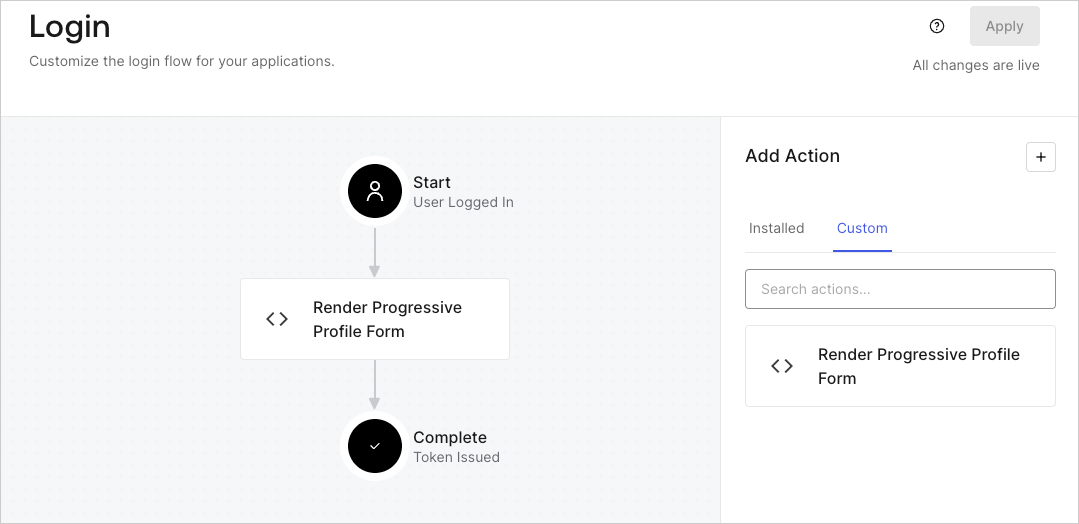
1. Navigate to **Auth0 Dashboard > Actions > Flows > Login.**
2. Select the **+** icon and select **Build from scratch**:

   * **Name**: Enter `Render Progressive Profile Form`.
   * **Trigger**: Select `Login / Post Login`.
   * **Runtime**: Select the recommended version.
3. Select **Create**.

To configure the post-login Action:

1. Delete the existing code from the Code editor.
2. Paste the form embed code into the Code editor.
3. Edit the code to define the conditional logic that will render the form.

   ```javascript lines theme={null}
   /**
   * @param {Event} event - Details about the user and the context in which they are logging in.
   * @param {PostLoginAPI} api - Interface whose methods can be used to change the behavior of the login.
   */
   exports.onExecutePostLogin = async (event, api) => {
     const FORM_ID = 'REPLACE_WITH_YOUR_FORM_ID';

     if (
       event.stats.logins_count > 2 &&
       !event.user.user_metadata.company_name &&
       !event.user.user_metadata.job_title
     ) {
       api.prompt.render(FORM_ID);
     }
   }

   exports.onContinuePostLogin = async (event, api) => { }
   ```

   <Callout icon="file-lines" color="#0EA5E9" iconType="regular">
     The example code above will render the form when a user has a login count > 2 and is missing the user metadata company\_name and job\_title properties.
   </Callout>
4. Select **Deploy.**
5. Drag and Drop the **Render Progressive Profile Form** Action to the **Login** flow.
   <Frame>
     <img src="https://mintcdn.com/docs-staging-actions-transaction-metadata/lto8wiYRjIe4HMyC/docs/images/cdy7uua7fh8z/1QjjZdpTqTxx012UDN4xk9/99fba5ef4068a5688f1762eea7f42976/renderprogessiveprofile.png?fit=max&auto=format&n=lto8wiYRjIe4HMyC&q=85&s=091973d268de24905d5656362fd673ca" alt="Dashboard > Forms > Use Cases Progressive Profile Login Action" data-og-width="1079" width="1079" data-og-height="524" height="524" data-path="docs/images/cdy7uua7fh8z/1QjjZdpTqTxx012UDN4xk9/99fba5ef4068a5688f1762eea7f42976/renderprogessiveprofile.png" data-optimize="true" data-opv="3" srcset="https://mintcdn.com/docs-staging-actions-transaction-metadata/lto8wiYRjIe4HMyC/docs/images/cdy7uua7fh8z/1QjjZdpTqTxx012UDN4xk9/99fba5ef4068a5688f1762eea7f42976/renderprogessiveprofile.png?w=280&fit=max&auto=format&n=lto8wiYRjIe4HMyC&q=85&s=9488808305df226e0d365483ea03d904 280w, https://mintcdn.com/docs-staging-actions-transaction-metadata/lto8wiYRjIe4HMyC/docs/images/cdy7uua7fh8z/1QjjZdpTqTxx012UDN4xk9/99fba5ef4068a5688f1762eea7f42976/renderprogessiveprofile.png?w=560&fit=max&auto=format&n=lto8wiYRjIe4HMyC&q=85&s=4cf5d2feaff6be7e92a3ddc92875d03a 560w, https://mintcdn.com/docs-staging-actions-transaction-metadata/lto8wiYRjIe4HMyC/docs/images/cdy7uua7fh8z/1QjjZdpTqTxx012UDN4xk9/99fba5ef4068a5688f1762eea7f42976/renderprogessiveprofile.png?w=840&fit=max&auto=format&n=lto8wiYRjIe4HMyC&q=85&s=d2431b06fccf61571c8f4829ffdc0a5d 840w, https://mintcdn.com/docs-staging-actions-transaction-metadata/lto8wiYRjIe4HMyC/docs/images/cdy7uua7fh8z/1QjjZdpTqTxx012UDN4xk9/99fba5ef4068a5688f1762eea7f42976/renderprogessiveprofile.png?w=1100&fit=max&auto=format&n=lto8wiYRjIe4HMyC&q=85&s=af7d22bf3fd7a0323efe4c9470b51ccc 1100w, https://mintcdn.com/docs-staging-actions-transaction-metadata/lto8wiYRjIe4HMyC/docs/images/cdy7uua7fh8z/1QjjZdpTqTxx012UDN4xk9/99fba5ef4068a5688f1762eea7f42976/renderprogessiveprofile.png?w=1650&fit=max&auto=format&n=lto8wiYRjIe4HMyC&q=85&s=893d832ca4a5bd820619e3f873a14645 1650w, https://mintcdn.com/docs-staging-actions-transaction-metadata/lto8wiYRjIe4HMyC/docs/images/cdy7uua7fh8z/1QjjZdpTqTxx012UDN4xk9/99fba5ef4068a5688f1762eea7f42976/renderprogessiveprofile.png?w=2500&fit=max&auto=format&n=lto8wiYRjIe4HMyC&q=85&s=74071a2f117a29dc188373b81e5b9a3a 2500w" />
   </Frame>
6. Select **Apply**.

### Test implementation

Test the implementation by following these steps:

1. Log in with an existing user whose login count is greater than 2 and their `user_metadata` attributes `company_name` and `job_title` have no values.
2. The post-login action in the Login flow will render the form and prompt for the information.
3. Select **Auth0 Dashboard > User Management > Users,** locate the user and verify that the `user_metadata` attributes `company_name` and `job_title` contain information.
